Class configurations
Class configurations are reusable templates for your Pilates classes. You must set up at least one class configuration. The assistant (Scheduling assistant) guides you through creating or editing configurations when you schedule a new class.
A class configuration captures these settings:
- Title and short description
- Required class passes for booking (at least one pass must be selected; multiple passes allowed)
- Class type and level (for example Reformer or Mat; Beginner to Advanced)
- Assigned instructor(s) and substitute instructor(s)
- Cancellation policy and deadline
- Advertising text for public listings
Step 1
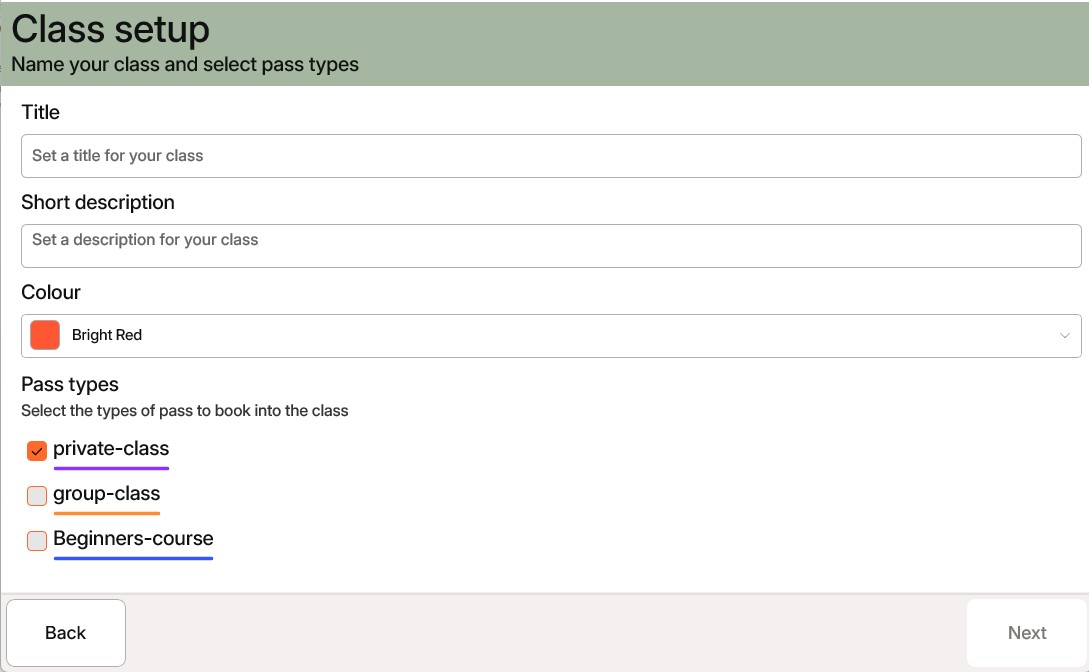
Enter the class name, short description, and select the class passes. A multi-checkbox list shows registered class-passes; select at least one, multiple selections are allowed.
Step 2
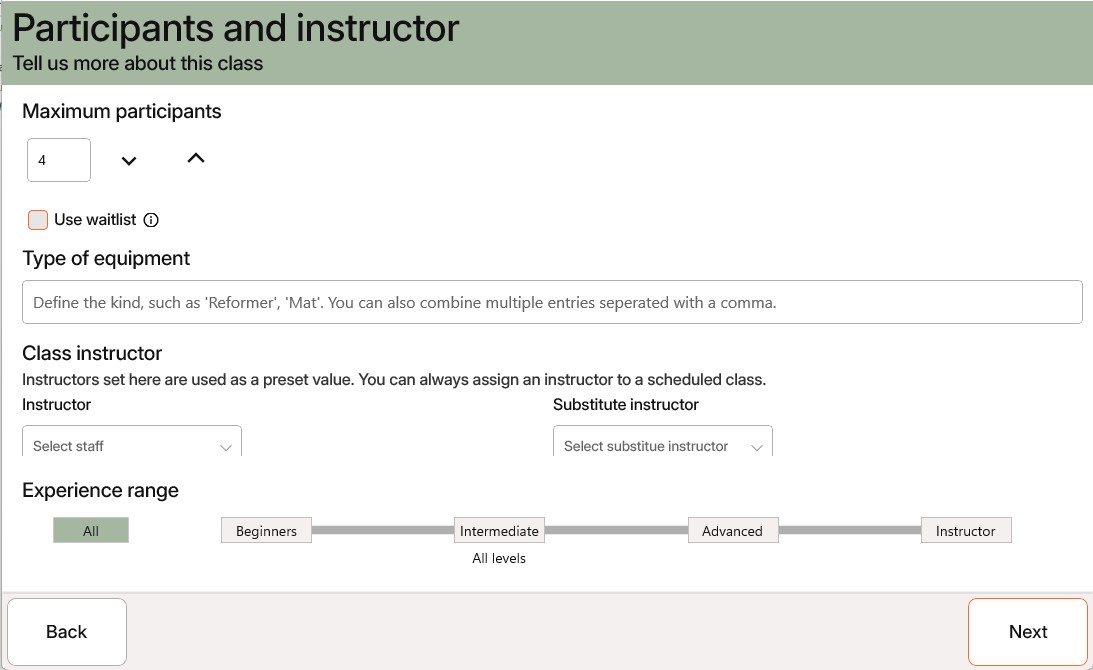
Configure capacity and equipment: set the maximum participants and choose equipment (for example Mat or Reformer). Assign the primary instructor and optional substitute. Select the experience range (All, Beginner, Intermediate, Advanced, Instructor).
Step 3
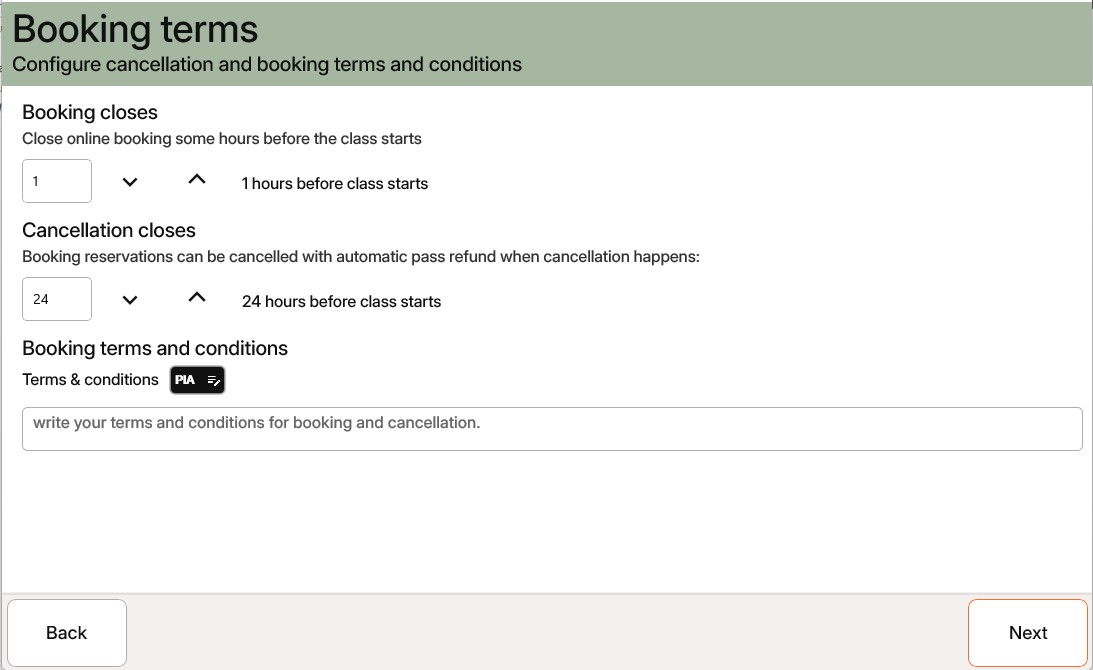
Set booking and cancellation rules: choose how many hours before class start booking closes, and how many hours before class an existing reservation can no longer be cancelled without forfeiting the class‑pass credit. Enter your booking terms and conditions in the provided text box. Use the PIA button to generate or refine terms quickly with AI assistance.
Step 4
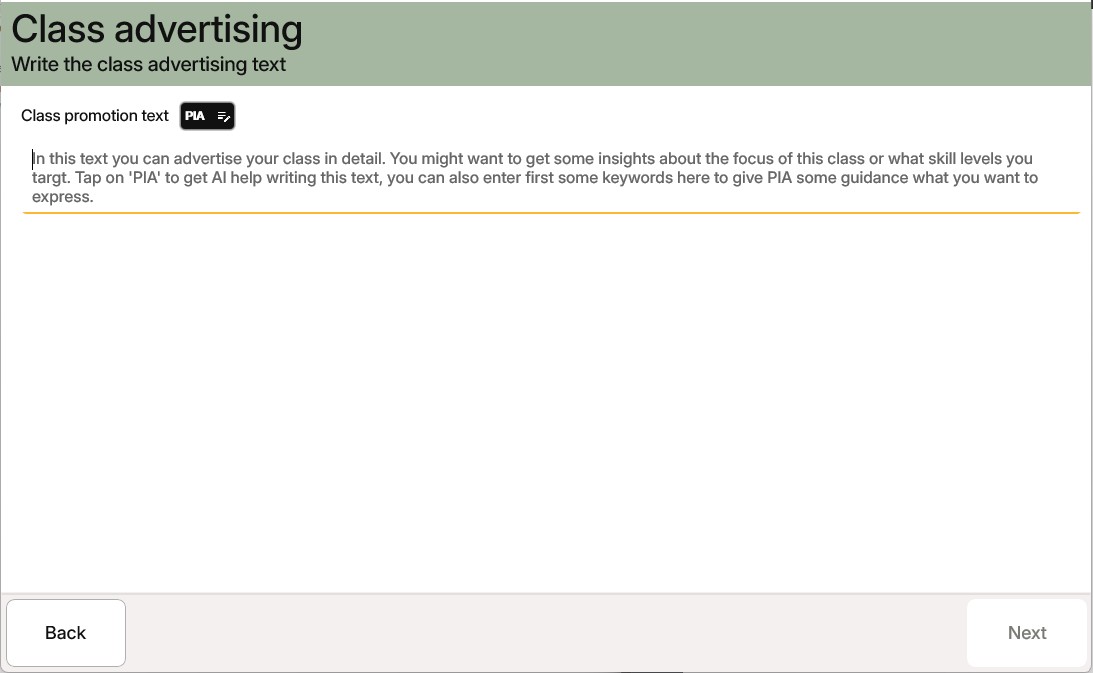
Write your advertising text here. Markdown formatting is supported. Use the PIA button for AI‑assisted copywriting to generate well‑formatted, publishable descriptions.
You can create the text in several ways:
- Leave the field empty and click PIA — PIA will generate copy from the information you entered in previous steps.
- Add a few keywords and use a regular prompt (talk to PIA) to shape the tone and details.
- Paste your prepared text and ask PIA to review it by adding a prompt such as: “PIA, please review this and fix any typos.”
Related articles
All Help categories
Here all all the main help categories in the Appilates user manual.